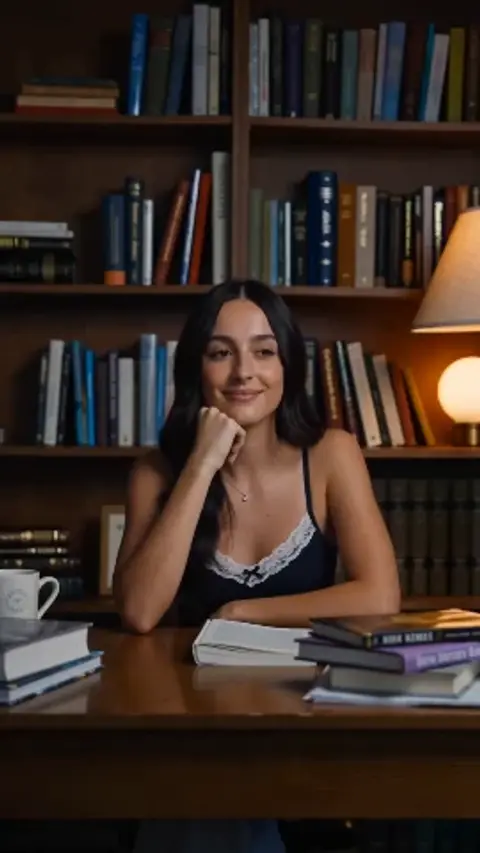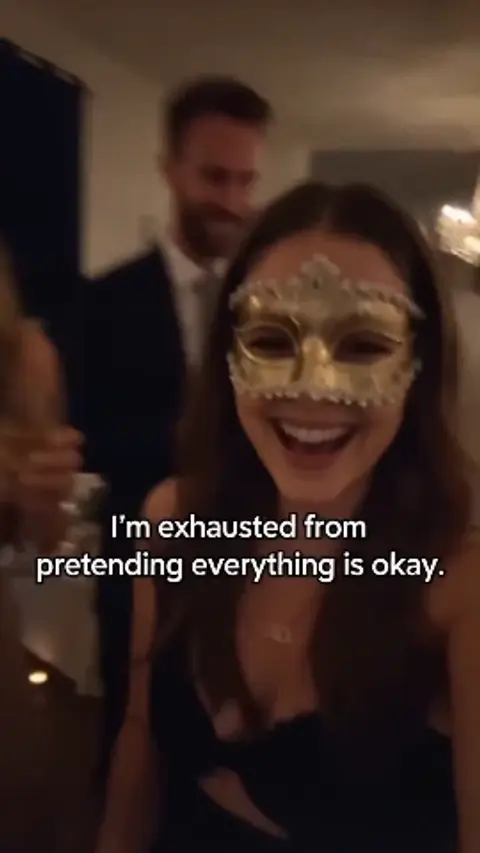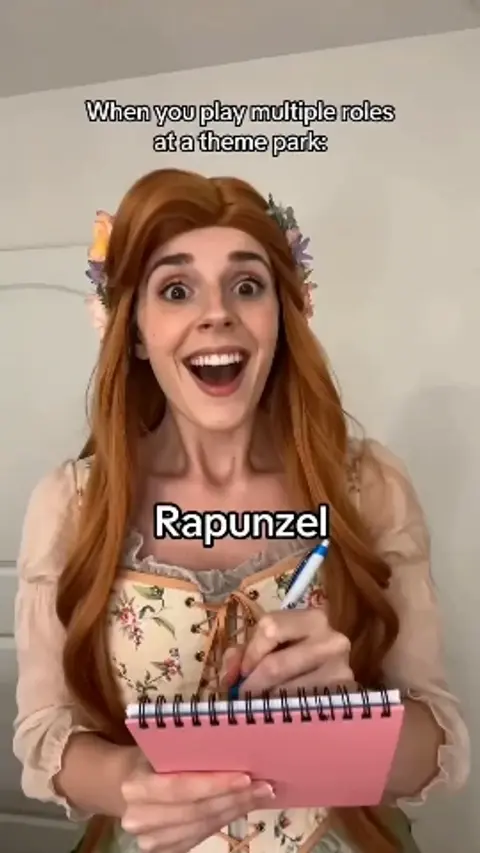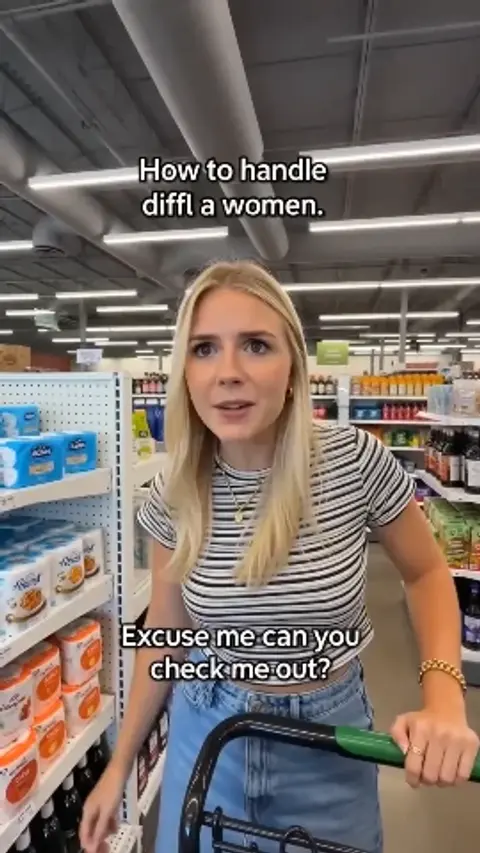
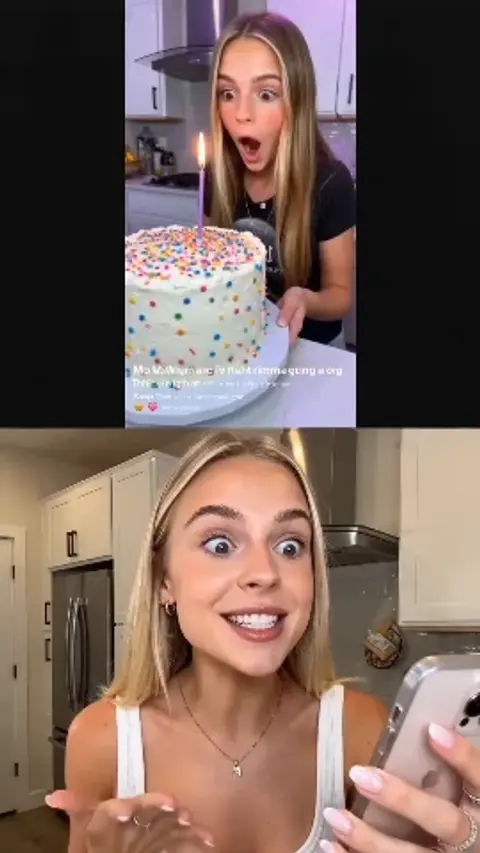
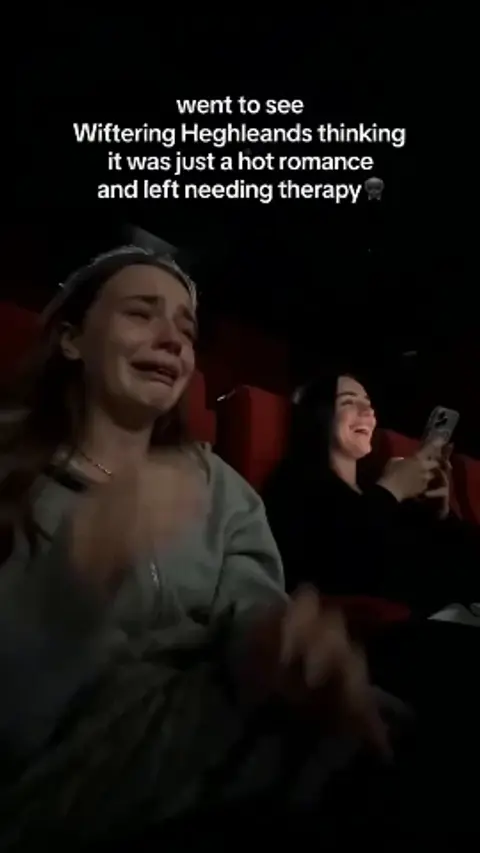
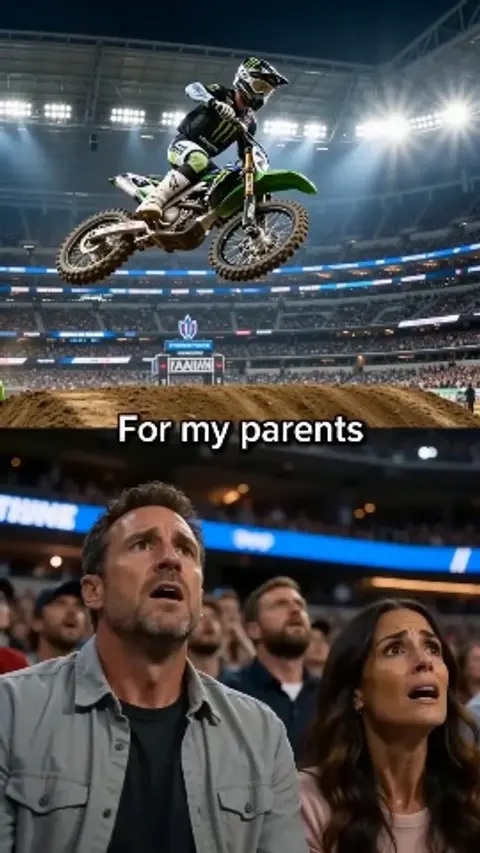
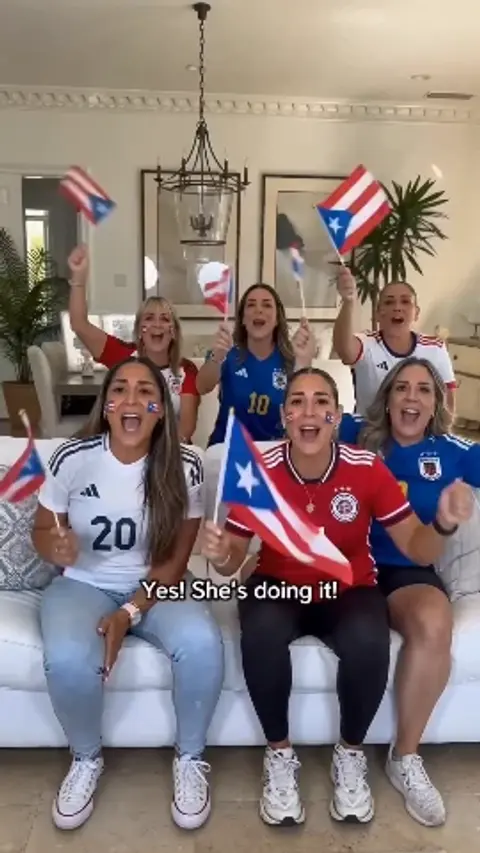
Viral Presets: AI Effects & Video Templates

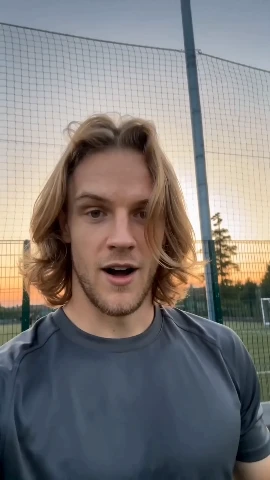
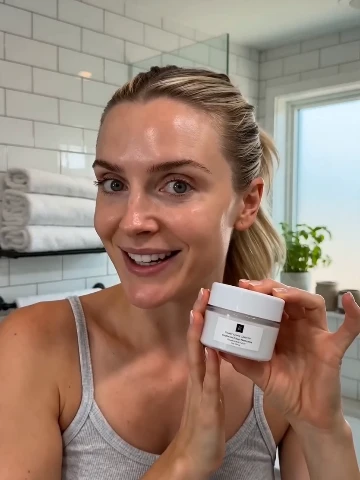
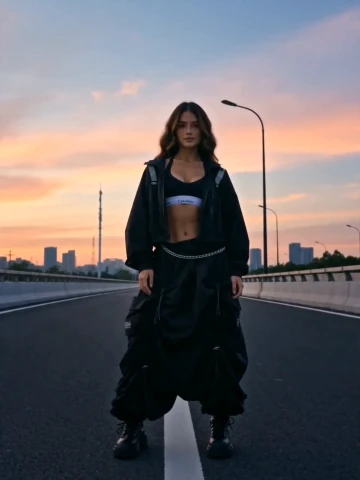
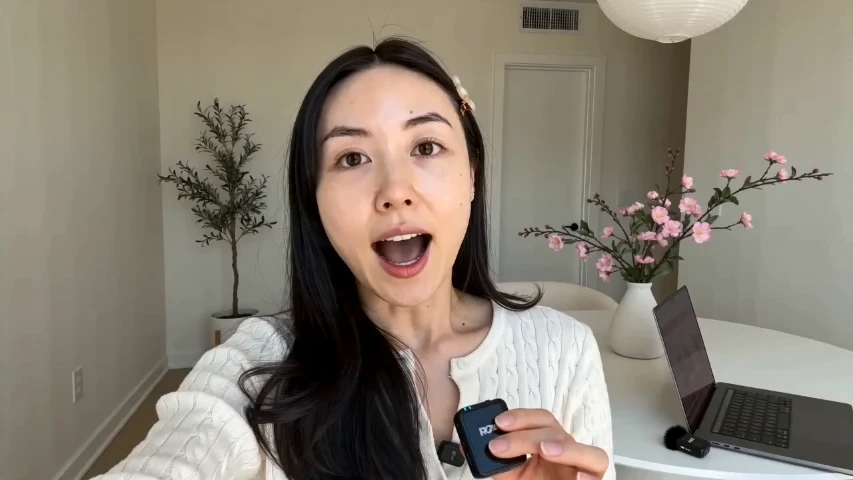
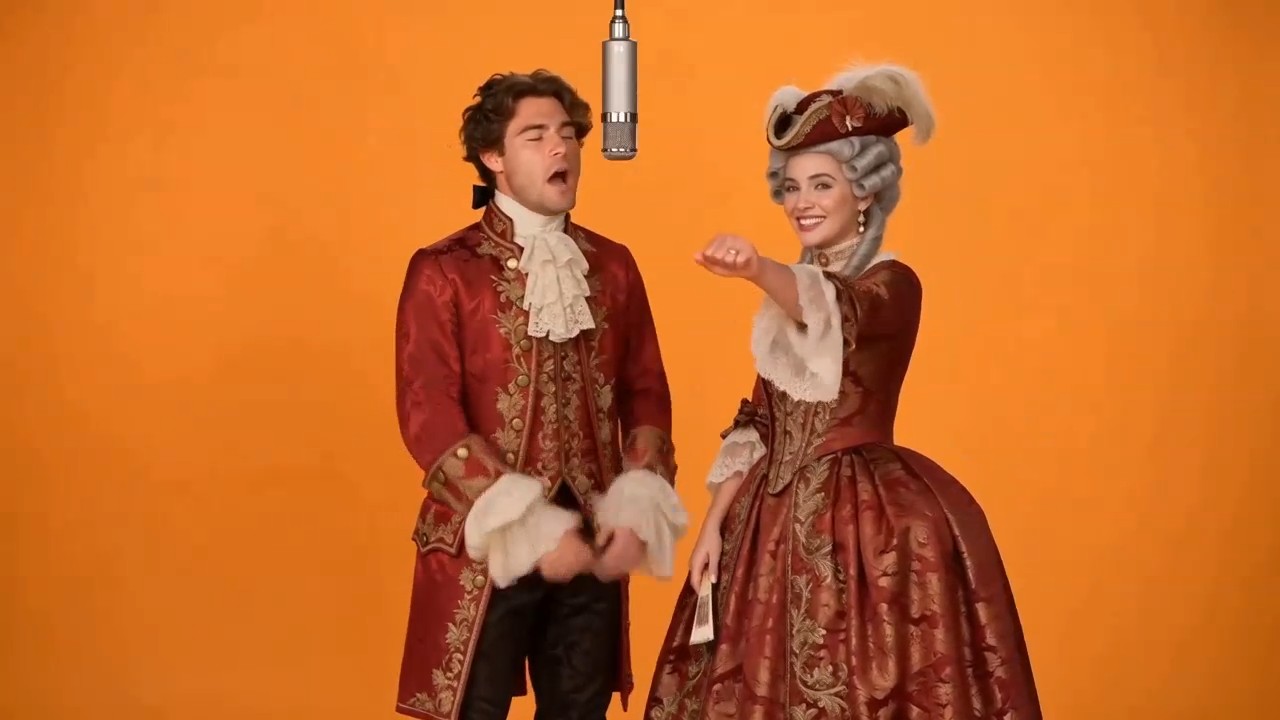
Find a scene, a style, or a playful twist for your next video. Bring your own photo references, or put two familiar faces on stage with the Hotel Lobby AI Video Template.

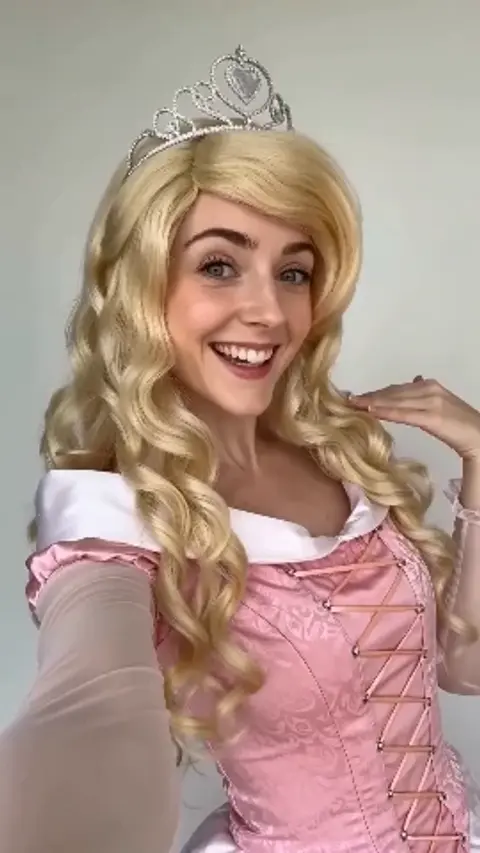
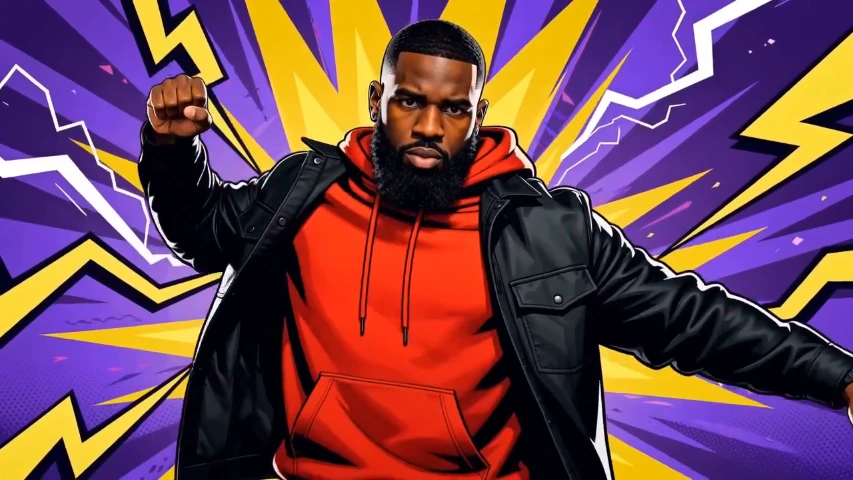
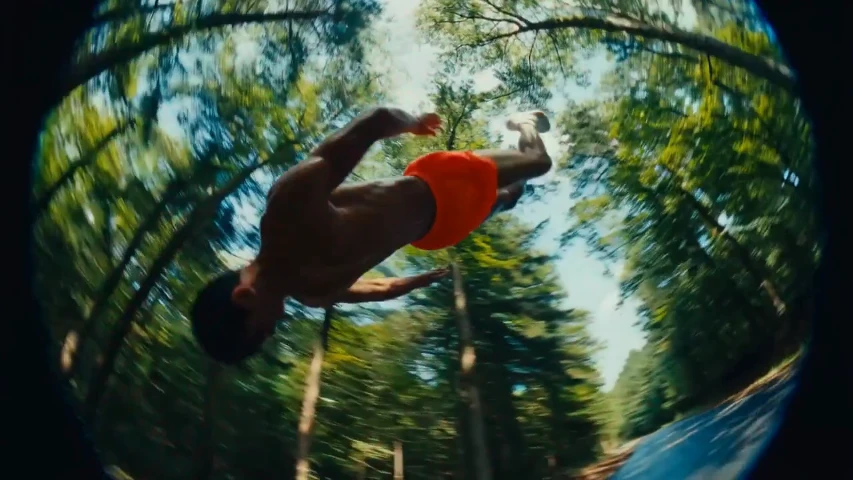
Start with a rap duo, a character transformation, or a new visual world. Preview a template to find the direction that fits your idea.
Find your next AI effect

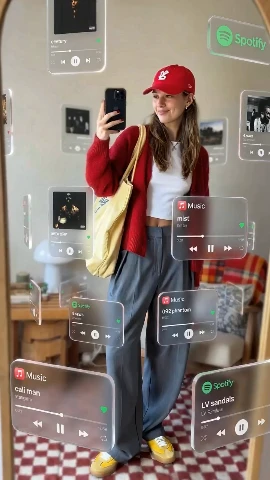
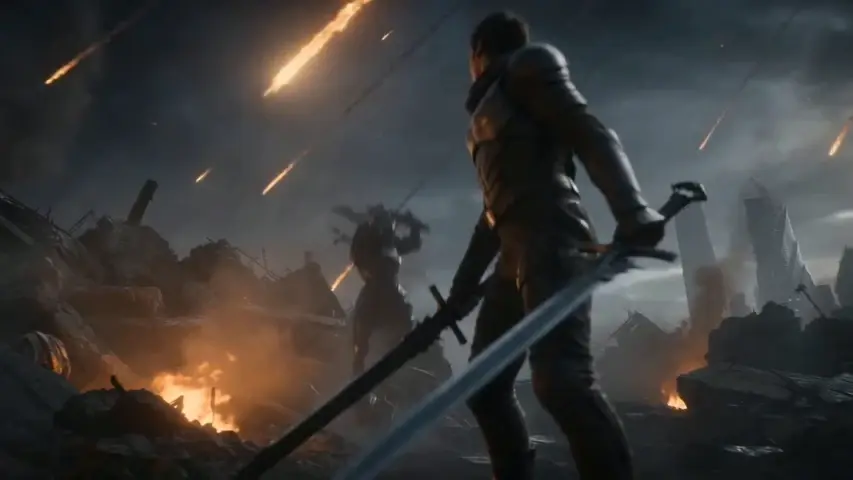
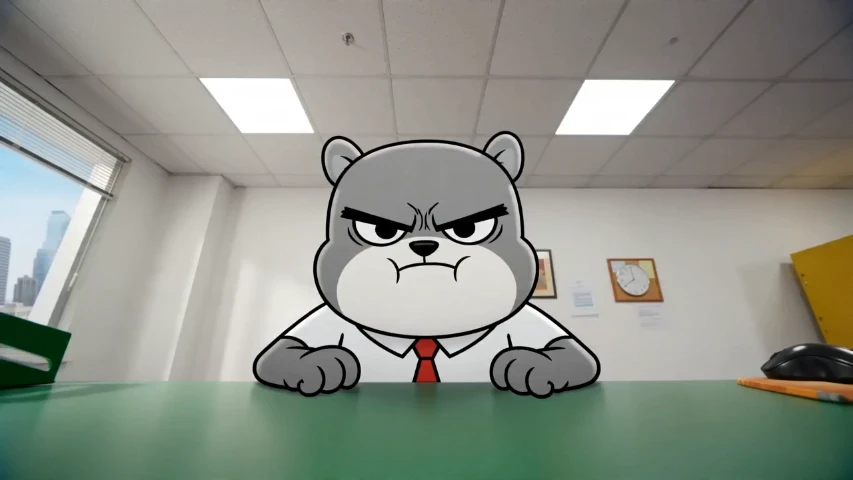
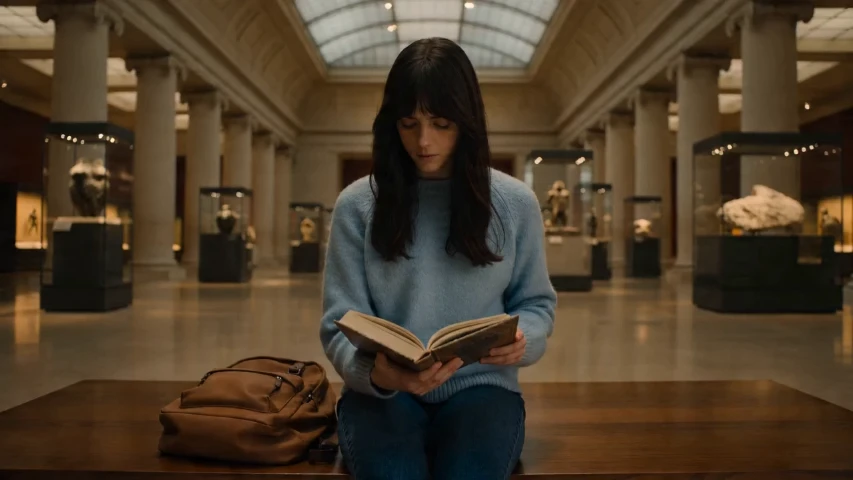
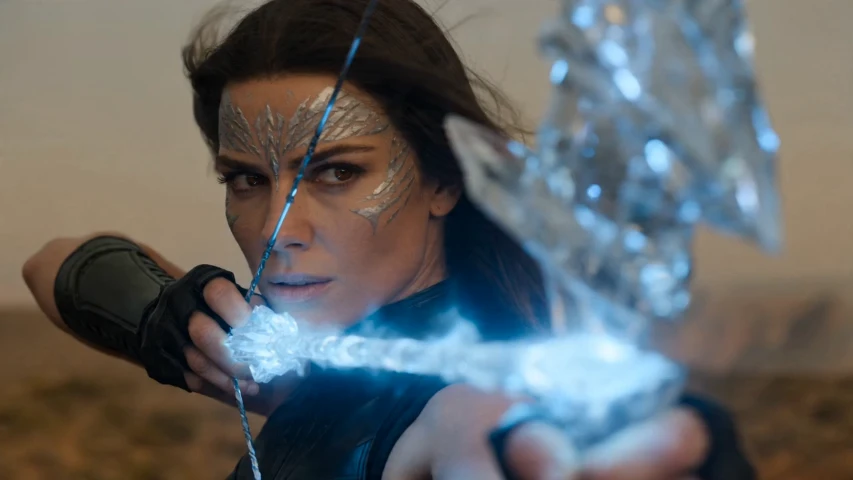
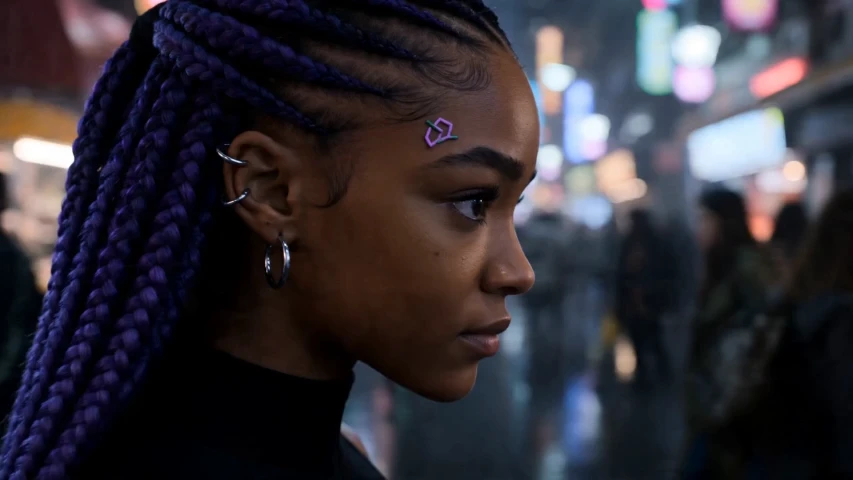
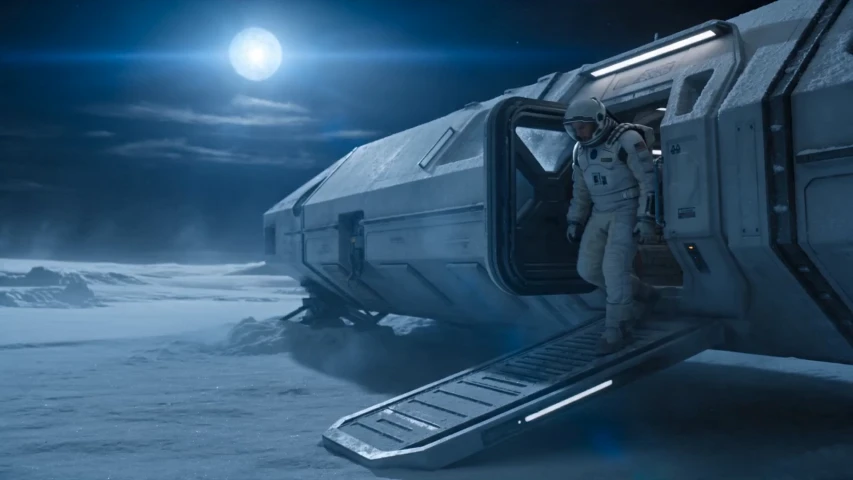
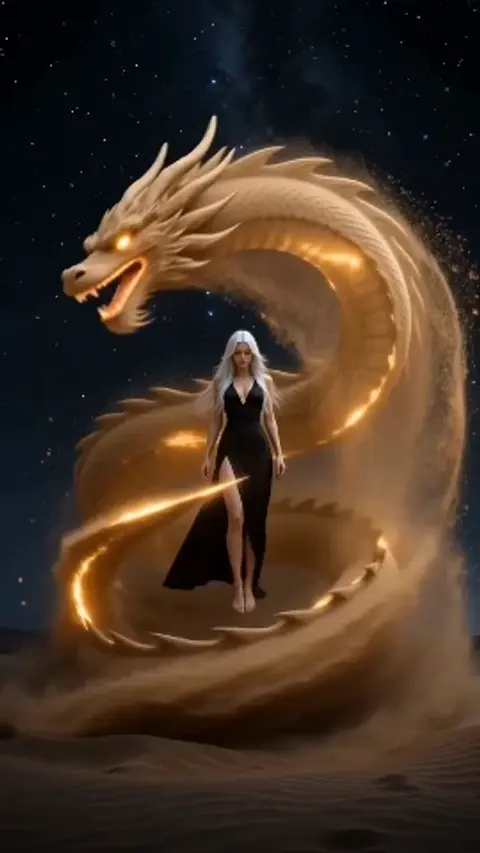
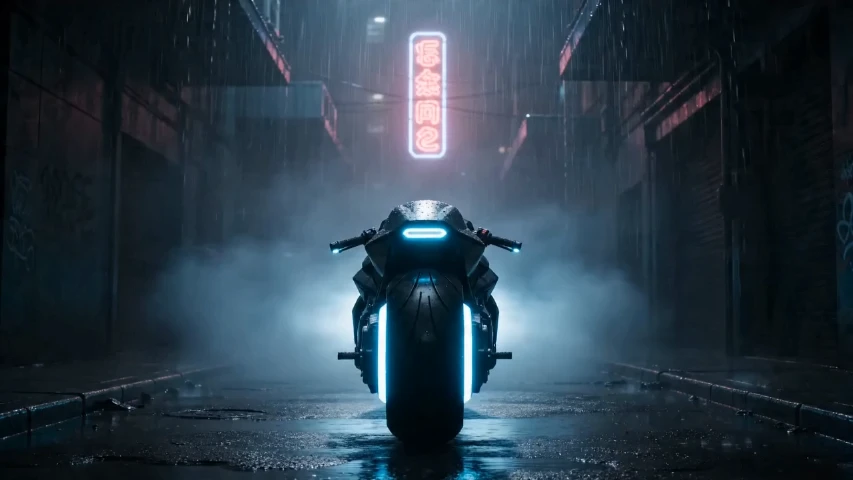
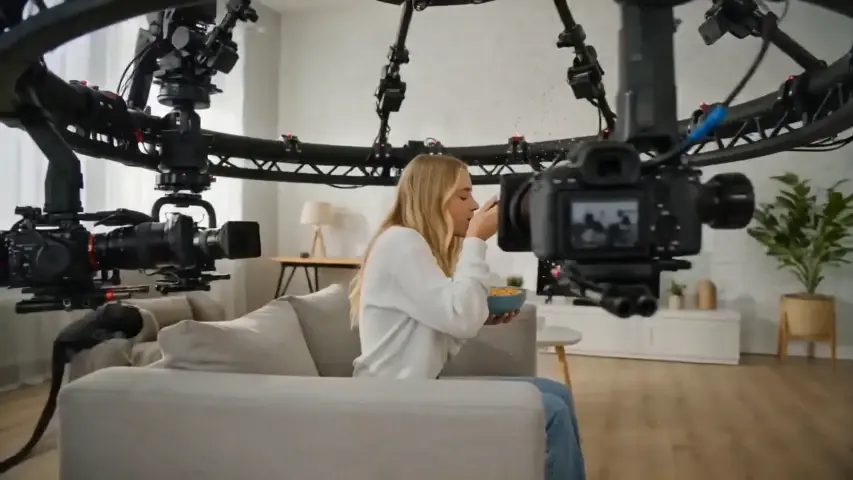
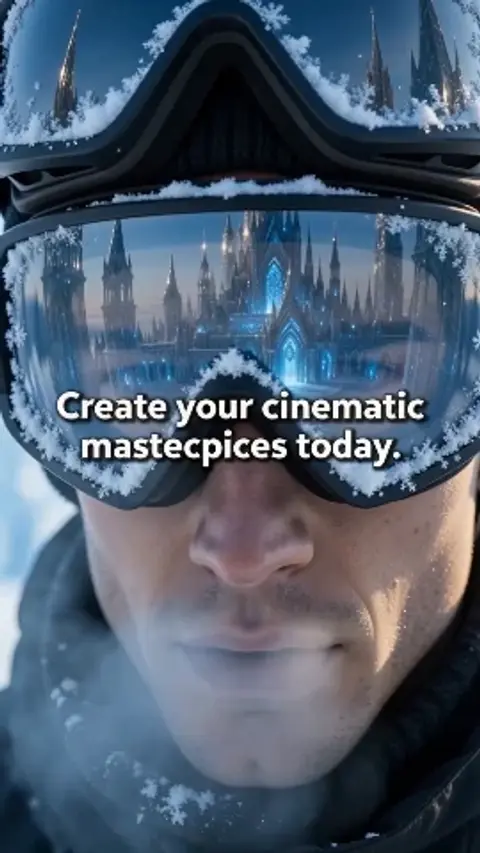
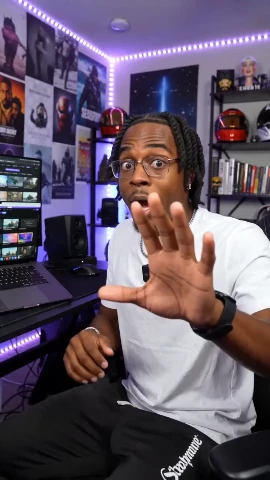
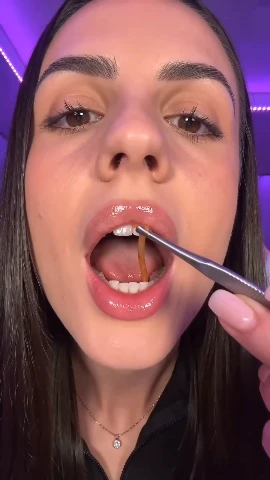
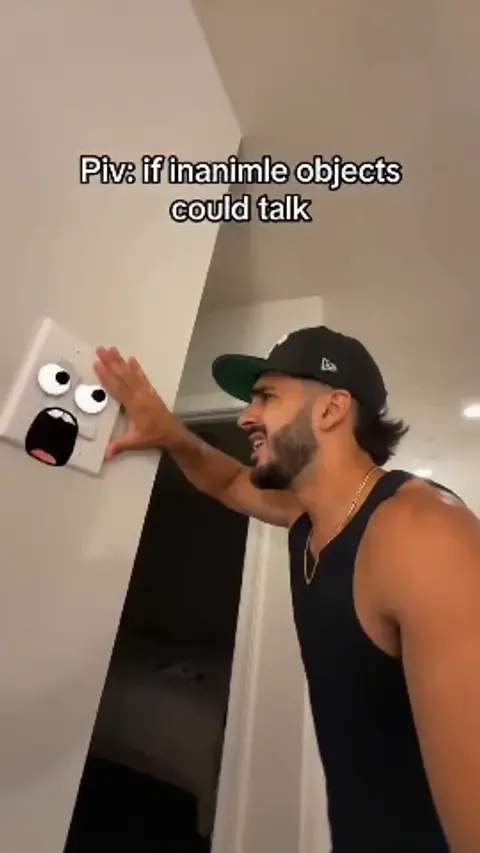
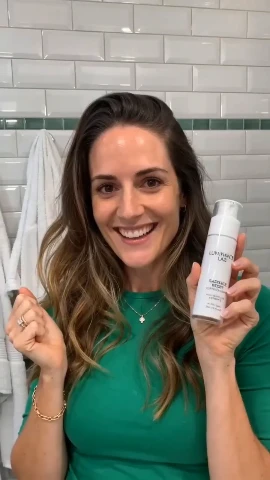
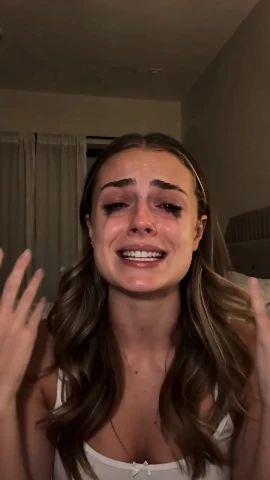
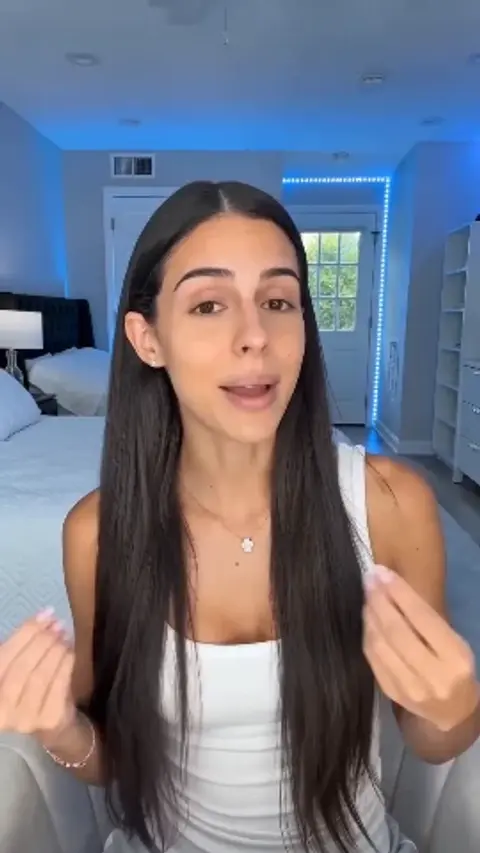
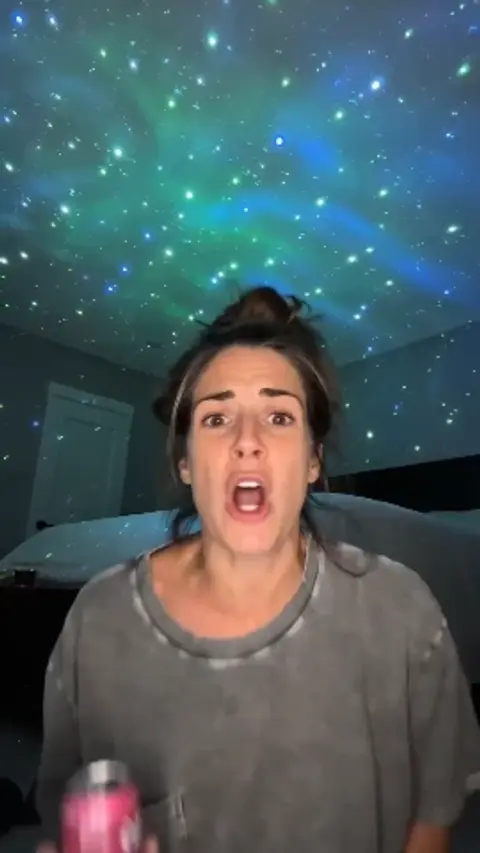
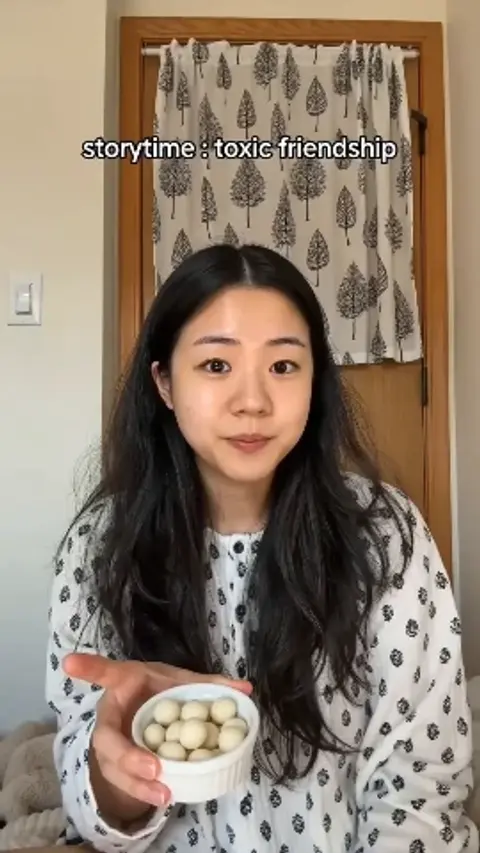
Browse video presets across Trending, Viral Hook, Shoppable Video, AI Effects, Meme, POV & Roleplay, Reaction, Storytelling, and Lifestyle.

97 presets
AI Effects

Trending

Viral Hook

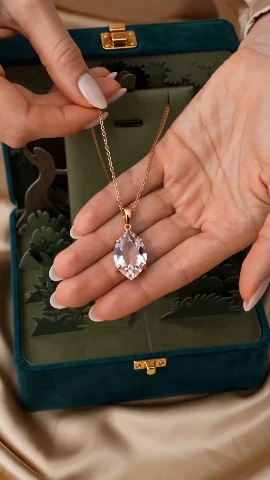
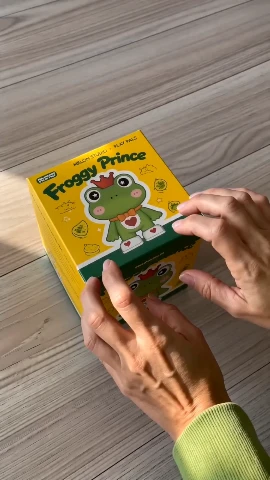
Shoppable Video

Meme

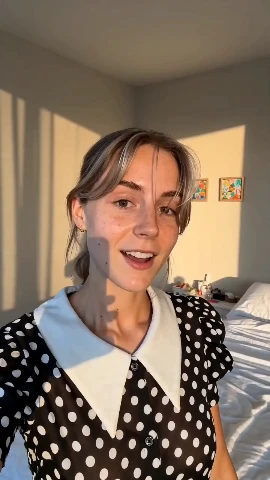
POV & Roleplay

Reaction

Storytelling

Lifestyle

AI effects for motion, characters, and new ideas

A preset gives your video a starting direction. Choose a scene, then bring the people, products, or characters that make it yours.

Video templates

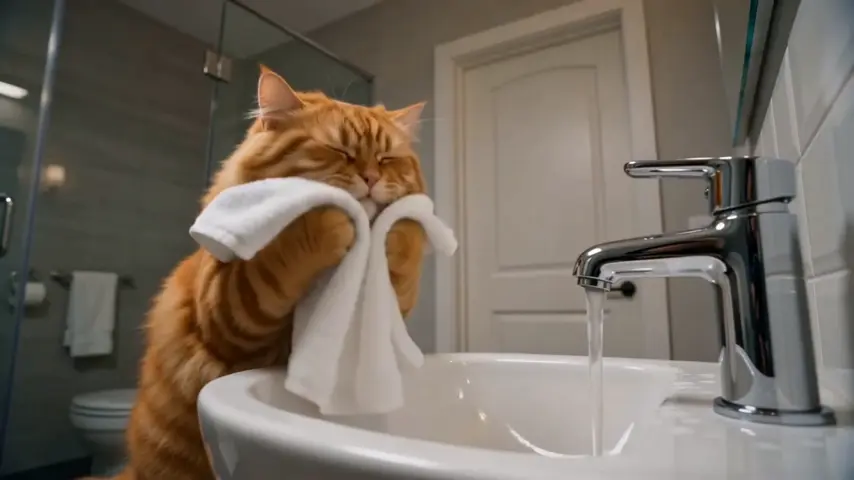
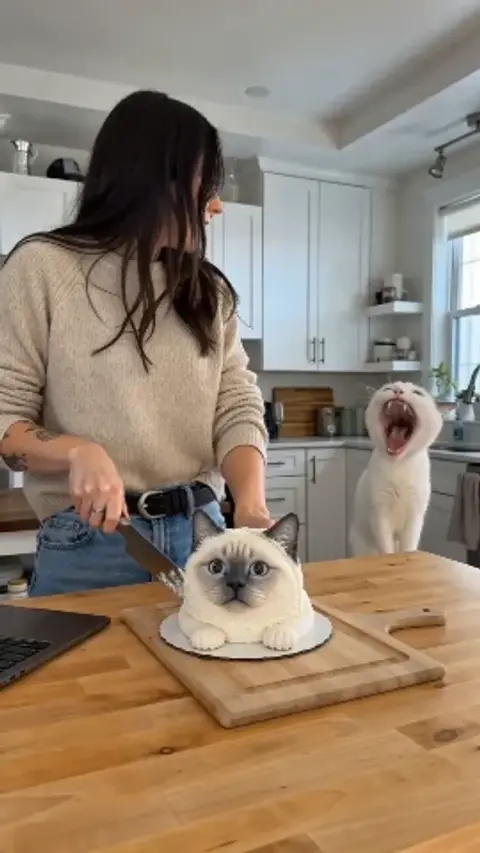
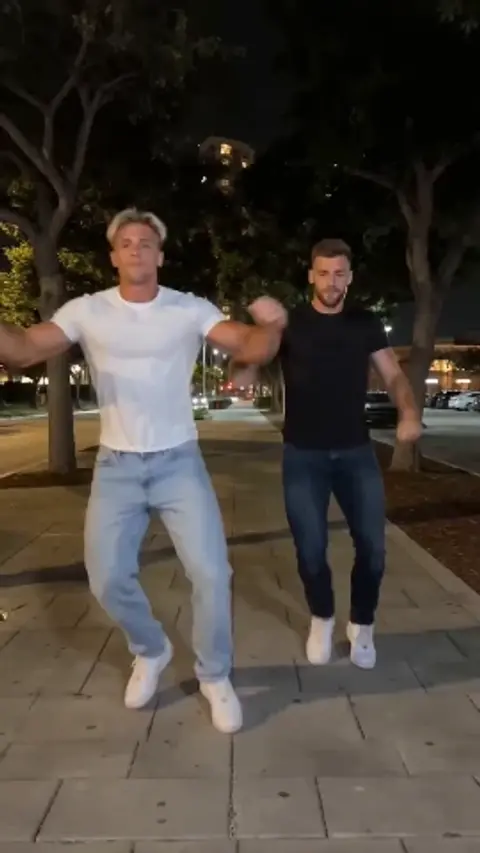
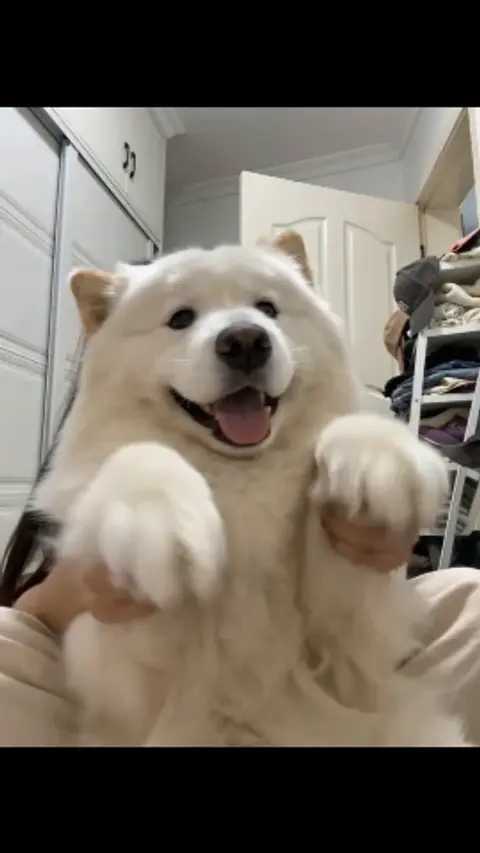
Explore short performances, visual reveals, character scenes, and other motion ideas with a defined creative setup.

Photo references into video

Use the portraits or product photos requested by a template to guide the subjects in your generated clip.

Creative categories

Move from memes and reactions to storytelling, lifestyle, and product concepts as your project takes shape.

Examples to explore

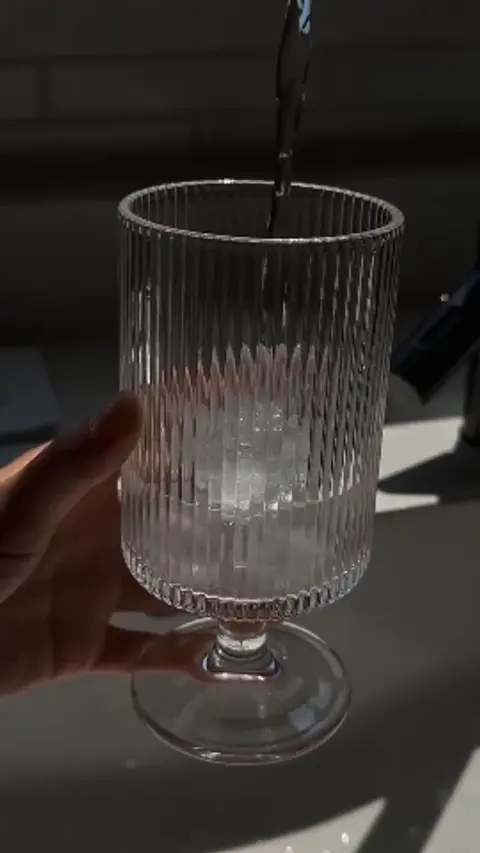
Use the template previews to understand the scene and overall style before opening the editor.

Make viral templates feel like your own

Start with a clear creative direction and spend your attention on the choices that give it character.

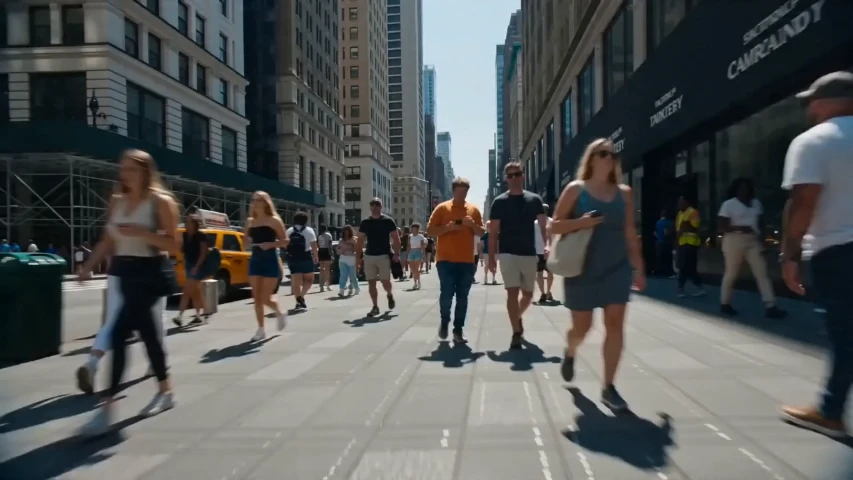
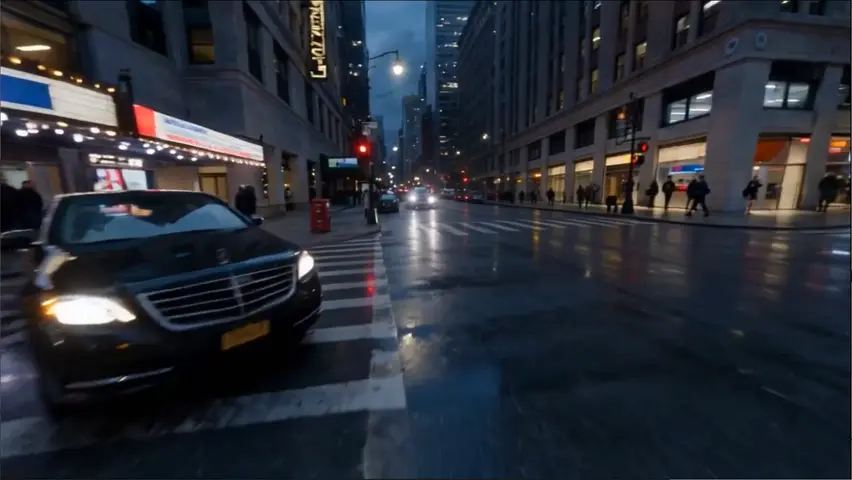
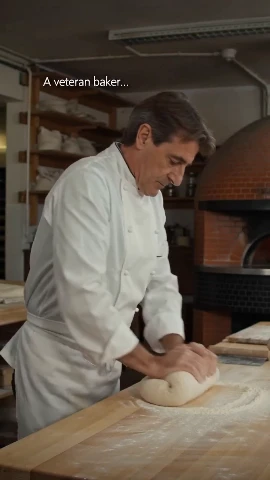
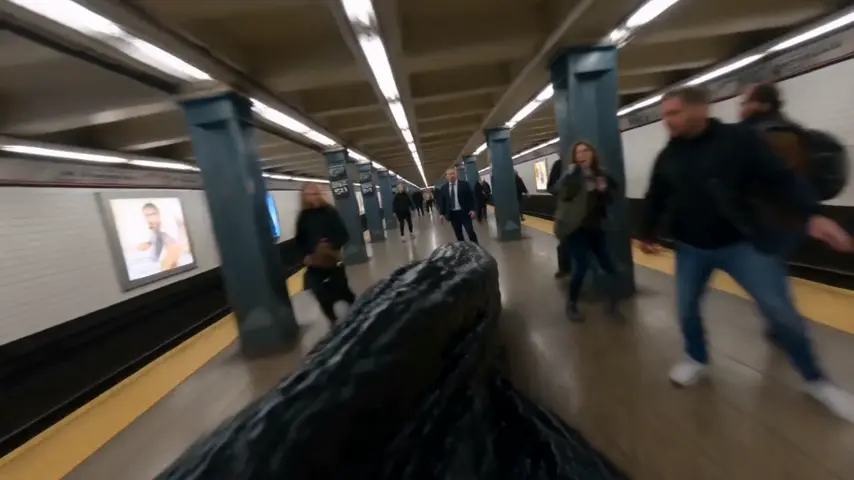
NYC Glitch: Giant Cursor Takeover

NYC Glitch: Giant Cursor Takeover

A starting point for the scene

The template supplies the core idea, so you can begin with a visual direction instead of writing every detail from scratch.

A preview before you commit

Explore template covers and available video previews to compare styles before choosing a preset.

Your references at the center

Add the photos requested by the editor to give the generated scene its subjects and personal context.

Controls that fit the template

Review the available settings and credit cost in the editor. Duration, framing, and other options depend on the selected template.

Use AI effects in four steps

Browse the collection, prepare your references, and review your generated result before you download it.

  1. 1

    Choose a preset

    Search the library or browse a category. Preview a video template to find a scene and style that fit your idea.

  2. 2

    Add your references

    Open the template and upload the photos its editor requests. Use clear images that show the subject you want to feature.

  3. 3

    Set up and generate

    Choose from the available controls, check the displayed credit cost, and submit your generation.

  4. 4

    Review and download

    Watch the full clip and check the details. Download the completed video and add your own context when you use it.

Where AI effects can take your next project

Choose a format that supports the story you want to tell.

Social posts and reactions

Build a short reveal, a playful meme, or a character reaction around a moment your audience understands.

Product and brand concepts

Explore a visual setting for a product or test a direction for a campaign before developing the wider project.

Lessons and presentations

Create a visual example or an opening scene to accompany an idea you are explaining.

Characters and visual art

Try a different look for an original character or explore how a scene reads in a new style.

Creative pitches

Use generated clips as visual concepts while discussing a direction with collaborators.

Personal surprises

Turn familiar faces into a birthday idea, a friendship post, or a playful duet with someone you know.

Three creative ideas to try with Viral Presets

Illustrative project ideas to help you choose your first template.

Give your friend a surprise rap partner

Open the Hotel Lobby AI Video Template, upload two portraits, and create a 10-second rap duo with original AI audio. Let your caption explain the pairing.

Place a product in a new scene

Explore Shoppable Video presets for a setting that suits your product. Use the generated clip as a creative concept and check the product details before sharing.
Find a new look for your character

Browse video presets with an original character in mind. Pick a visual direction and review how its colors, movement, and mood carry through to the clip.
Viral Presets and AI effects FAQ
What to expect from the library and the template editor.

What are Viral Presets?

Viral Presets are ViewMax video templates built around a creative setup or visual style. The name describes the collection’s inspiration in social formats and trends; the result and its audience response depend on your content.
Which types of AI effects can I browse?

The library includes video presets across categories such as AI Effects, Meme, Reaction, Storytelling, Lifestyle, and Shoppable Video. Use categories and search to find a suitable starting point.
Do I need to upload a photo?

Open a template to see its required inputs. The editor shows which photos or references to provide. For example, the Hotel Lobby AI Video Template uses two portraits, one for each performer.
How much does generation cost?

Generation uses ViewMax credits. The editor displays the required credits before you submit, based on the selected template and available settings. You can check your credit balance in your account.

How long does an AI effect take to generate?

Processing time varies with the model, selected settings, and service load. The editor shows the generation status, and the video becomes available when the task finishes.

Can I change the duration or aspect ratio?

Available controls depend on the template and its model. Check the editor for the settings you can change. The Hotel Lobby template creates 10-second clips with selectable framing and resolution; other templates can have different options.

What should I check before using a generated result?

Watch the full clip for subject consistency, faces, hands, text, and important product details. AI output can vary, and clearer reference photos may help when you want to try again.

How do I create a Hotel Lobby rap duo?

Open the Hotel Lobby AI Video Template, upload one clear portrait per performer, and choose the aspect ratio and resolution. The template generates a 10-second rap duo with original AI audio. Preview the completed video before downloading it.

Make your first preset personal

Start with the Hotel Lobby AI Video Template: two portraits, one rap duo, and a 10-second performance with original AI audio.

Try Hotel Lobby AI Video Template